Add widgets to a post
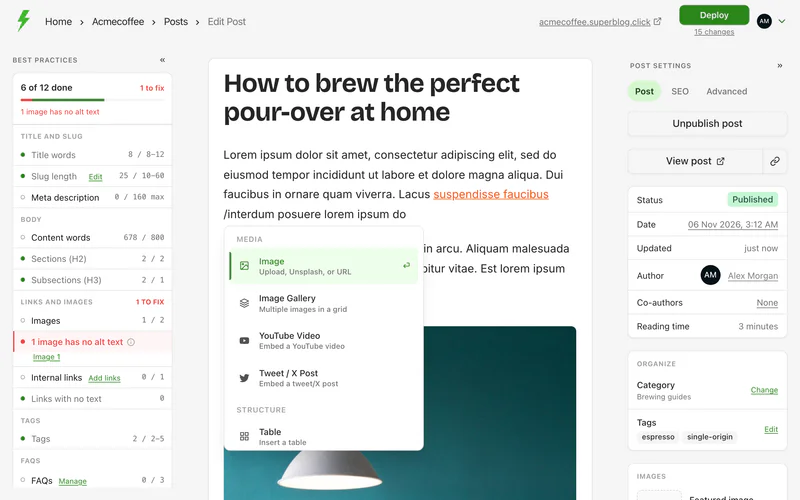
Widgets are the blocks you insert with the / menu. Type / on an empty line, then the widget's name, and press Enter. To change a widget later, click it.
Every example on this page is a real widget, exactly as readers see it on a blog.
Image
Choose an image from one of four sources: Upload, Unsplash, My Media or a URL. Then fill in:
- Alt text (required): describes the image for screen readers and search engines. Click Describe with AI to have it written for you. See Image Studio.
- Caption (optional): shown under the image.
- Size: Small (40%), Medium (70%) or Full width.
- Link (optional): where the image goes when clicked.
You can also paste an image, or drag image files into the editor.
Image Gallery



Add up to 9 images from your computer, Unsplash or your media library. Give each one alt text.
YouTube Video
Paste the video's link and pick a size.
Tweet / X Post
Paste the link to the post on X.
Table
Choose the number of rows and columns, and whether the first row is a header. After inserting, use the table controls to add or remove rows and columns.
Code Block
package main

import "fmt"

func main() {
    fmt.Println("Hello, World!")
}
- Choose the language.
- Paste or type your code.
- Click Auto format to fix the indentation.
Auto format runs in your browser and only changes indentation, spacing and line breaks. It works for JavaScript, TypeScript, JSON, CSS, SCSS, HTML, XML, Markdown, YAML, GraphQL, Python, Go, Java, C, C++, C#, PHP, SQL, Bash and other common languages. For a language it does not support, the button is greyed out. If the code has a syntax error, you see Could not format code: fix the error, or insert the code as it is.
Readers get syntax highlighting and a copy button.
Horizontal Rule
A divider line between sections, like the one below.
Type /divider, or --- on an empty line.
CTA Button
Enter the button text, then choose its action: a URL link, or Custom JavaScript to run when it is clicked.
Callout
A highlighted section that asks the reader to act. Fill in a heading, a subheading, the main button's text and URL, and optionally a second button.
Post Card

Search your published posts (type at least 3 characters) and pick one. The card shows its title, description and image, and links to it.
Embed from URL
Paste a link from Spotify, SoundCloud or another supported service, and pick a size. The editor shows a preview before you insert it.
Custom HTML / Embed Code
Paste HTML, an embed code or an iframe, for example a booking widget, a survey or a calculator. The example above is a Reddit embed. Tick I confirm the above code is safe, trusted, and allowed to run, then insert it.
The code runs on your published blog exactly as you paste it, so only use code from sources you trust.
Markdown
Paste a markdown document and click Insert markdown. It is converted into normal editor content, which you can then edit. To insert it from the keyboard, press Cmd + Enter (Ctrl + Enter on Windows).