Add internal links
Internal links point from one of your posts to another. They help readers find related posts, and help search engines understand how your posts fit together.
Superblog finds the spots in your draft that could link to a post you have already published, and lets you add each link with one click.
Add links to a draft
- Open a post in the editor.
- In the Best practices panel on the left, find Internal links and click Add links.
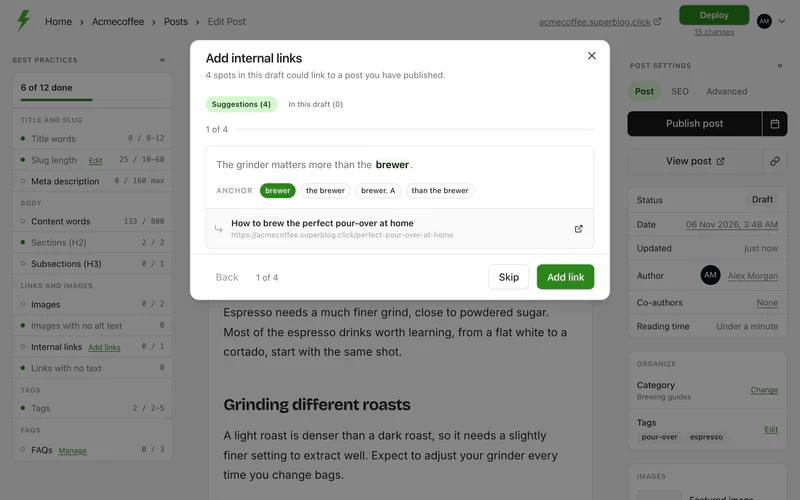
- Superblog shows how many spots in the draft could link to a published post, and goes through them one at a time.
- For each spot, pick the Anchor: the words that become the link. Superblog offers a few choices from the sentence.
- Check the post it will link to, shown below the anchor. Click the open button to read it first.
- Click Add link, or Skip to move on. Click Back to return to the previous spot.
When a spot already has a link, the suggestion says Replaces an existing link, and the button is Replace link.
Each link appears in the draft as soon as you add it. Click Undo on the confirmation to take it back.
If you skip suggestions, they are kept. They show up again the next time you click Add links.
See the links already in a draft
Open the In this draft tab. It lists the internal links the post has now, split into links to your posts and links to other pages on your site. From here you can change a link's URL, or Remove it.
When there are no suggestions
You see Nothing to link to yet when none of your published posts match the text in the draft. Suggestions get better when:
- The draft has more text.
- The post has a category and tags.
- You have published more posts on related topics.
How many to add
The Internal links check passes with at least one internal link. Add the links that genuinely help a reader, not every suggestion. See SEO best practices.