Write in the editor
Every post and page is written in the same editor. We call it Velocity. It keeps the page clean while you write, and shows its tools only when you need them.
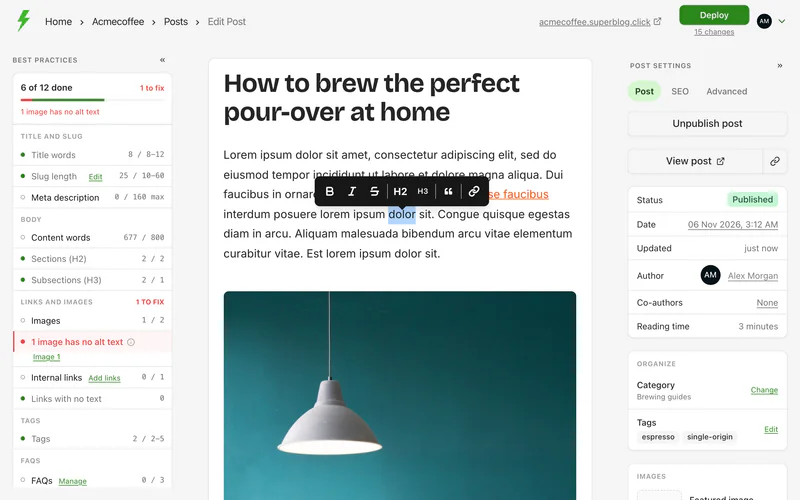
Format text
Select any text to show the floating toolbar. Use it for bold, italic, strikethrough, Heading 2, Heading 3, quotes and links. For underline and text alignment, use the keyboard shortcuts.
Insert widgets with /
Type / on an empty line to open the command menu. Keep typing to filter it, for example /image shows the image widget. Press Enter to insert the highlighted one.
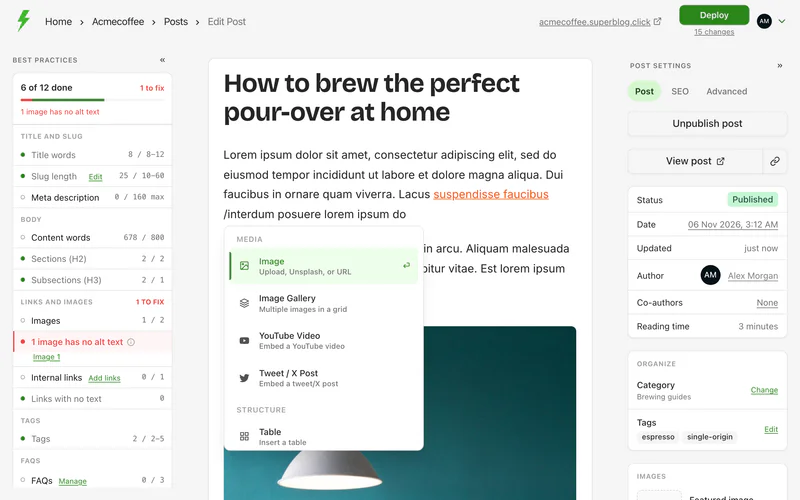
The menu has images, galleries, videos, tweets, tables, code, buttons, callouts, post cards, embeds, custom HTML and markdown. See Widgets for each one.
Type /help to open the Editor guide, which lists the shortcuts and tips below.
Use markdown as you type
Full markdown syntax works while you type:
A single # also makes a Heading 2. The post title is the page's only Heading 1, which is what search engines expect.
To paste a whole markdown document at once, use the /markdown widget.
Add images by pasting or dropping
Paste an image from your clipboard, or drag image files into the editor. Superblog optimises them and uploads them to its CDN while you keep writing. Each image is also added to your media library.
Keep the writing line in the middle of the screen
In the post's settings, tick Add extra spacing to editor. It adds space below the post, so the line you are typing can sit in the middle of your screen instead of at the bottom.
Your work is saved as you go
The editor saves automatically. Saved changes are not live yet: readers see them after you deploy.