Turn on and moderate comments
Readers can comment on your posts. Comments are not available during the free trial.
Turn comments on
Comments have a site-wide setting, which each post can override.
- For the whole blog: go to Settings > Integrations and tick Comments.
- For one post: open the post, and on the Post tab of its settings, under Display, tick or untick Enable comments.
Then deploy your blog.
Which comments are shown
A comment appears on your blog when either:
- The reader confirms it from the email Superblog sends them, or
- You have pre-approved the reader's email address for commenting.
You can also block any comment from the public.
Moderate comments
- Open the post.
- In its settings, click the Advanced tab.
- Next to Reader comments, which shows the count, such as 3 comments, click View.
- For each comment, use Moderate to pre-approve the email address or block the comment. You can also edit or delete it.
To reply as yourself, type in the box at the bottom and click Reply.
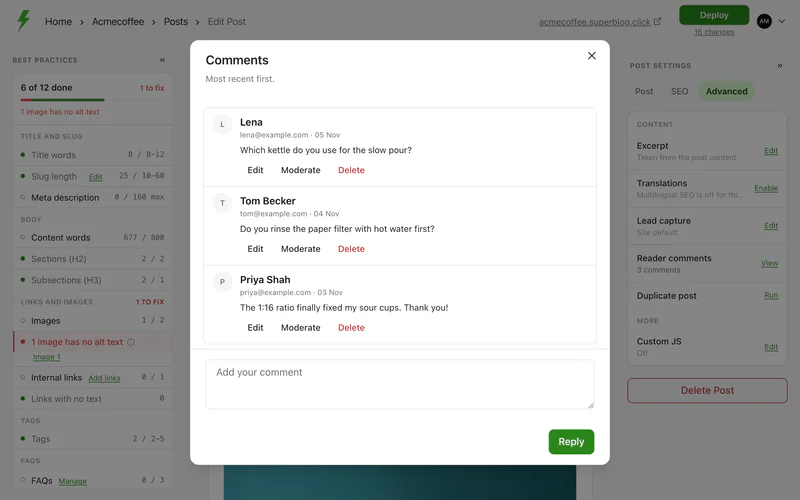
Deleting a comment removes it from your blog permanently.
Use Disqus instead
To use Disqus, enter your Disqus shortname in Settings > Integrations.