Organise posts with categories
Dashboard > Categories
Categories group related posts, so readers can follow a subject. Each post belongs to one category. Each category gets its own page on your blog, listing its posts.
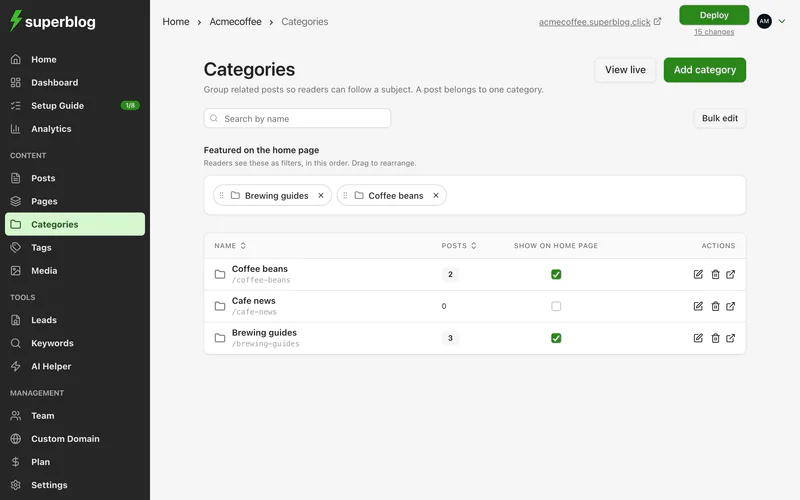
Add a category
- Go to Categories.
- Click Add category.
- Enter a name. The slug, its address on your blog, is filled in for you.
- Pick an icon.
- Tick Show in home page categories filter to show it on your homepage.
- Click Add category.
You can also create a category while writing: type a new name in the post's category field and choose Create.
Show categories on your homepage
The categories ticked Show on home page appear on your homepage as filters, in the order shown under Featured on the home page. Drag them to change the order.
Set a category's search appearance
When you edit a category, the optional Search appearance section sets the meta title and description of its page. If you leave them empty, the category name is used.
See a category's posts
Click the number of posts next to a category to see them. To move posts between categories in one step, use Bulk edit.
Delete a category
Deleting a category does not delete its posts. They are left without a category until you assign a new one.