Redirect old URLs
Dashboard > Settings > Advanced > Redirects
A redirect sends anyone who opens an old address to a new one. Use it when you change a post's slug, delete a post that other sites link to, or move from another platform. Links you have already shared keep working, and search engines move the old page's ranking to the new one.
Every redirect is a permanent (301) redirect.
Add a redirect
- Go to Settings > Advanced and click Manage next to Redirects.
- Click Add redirect.
- Source path: the old address on your blog, without your domain, for example
old-post. - Target URL: the full address to send readers to, for example
https://yourblog.com/new-post. It can be on your blog or anywhere else. - Save, and deploy.
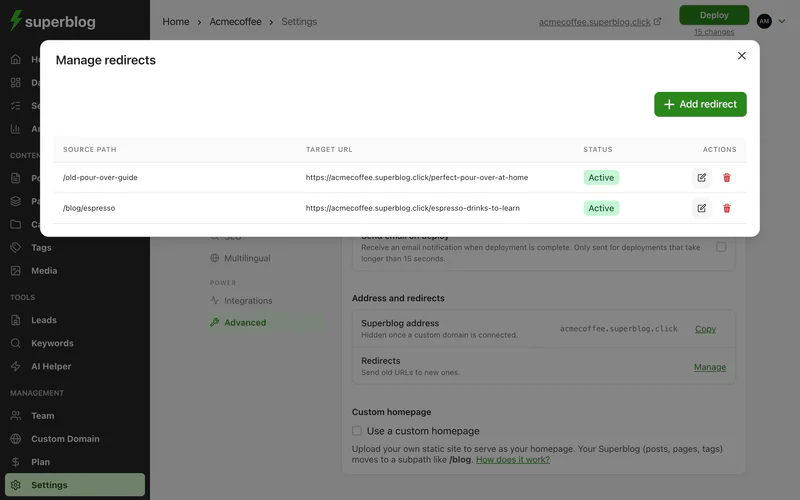
Edit, pause or delete a redirect
In the list, click the edit button to change a redirect, or set it to Disabled to pause it without deleting it. Click the delete button to remove it. Once deleted and deployed, anyone following the old link gets a "page not found" error.
Limits
A blog can have up to 500 redirects.
When you change a slug
Superblog does not add a redirect for you when you change a post's slug. If the old address has been shared or indexed, add a redirect from it.