Collect leads from your blog
Dashboard > Leads
Superblog can ask readers for their email address, or phone number, in three places. Each one is set up separately, and you can use any of them. Lead capture is not available during the free trial.
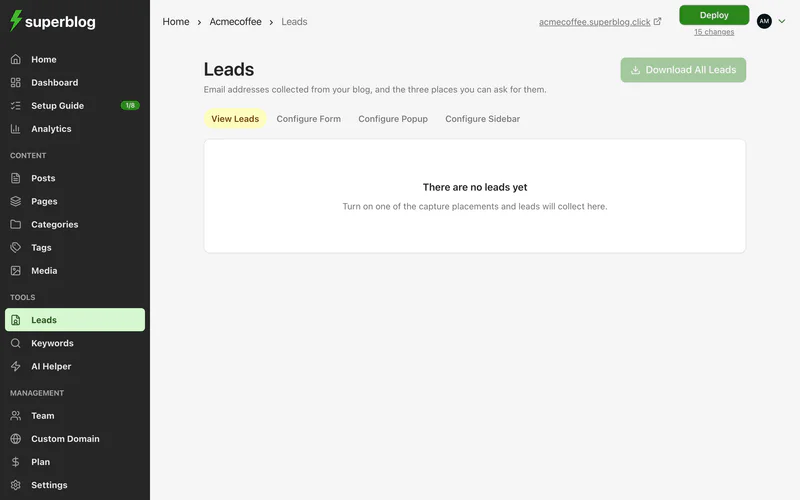
Set up a placement
- Go to Leads, and click Configure Form, Configure Sidebar or Configure Popup.
- Tick Enable for that placement.
- The pitch: the heading, text and image readers see.
- The ask: tick Collect Lead to show an input field, choose Email or Phone Number as the Capture Lead Type, and set the button text. Untick Collect Lead to show only a button that links somewhere, for example Book a demo.
- Afterwards: the Success Message readers see, or a link to send them to after they submit.
- Save, and deploy.
Click View Sample to see how each placement looks. Popups interrupt reading, so the popup only shows once and always closes when readers click outside it.
Advanced options
See and download your leads
The Leads page lists every lead, with where and on which page it was captured. Click Download All Leads to get them as a CSV file.
To send leads to your CRM or email tool automatically, see Zapier.
Different forms on different posts
Each post can use the site's forms or its own. In the post's settings, change Lead capture from Site default. See Change a post's settings.