Choose a template
A template sets your blog's layout: how the homepage lists posts, where the menu sits, and how a post page is arranged. Your content stays the same when you change template, so you can switch at any time.
The templates
Click a name to open a live example.
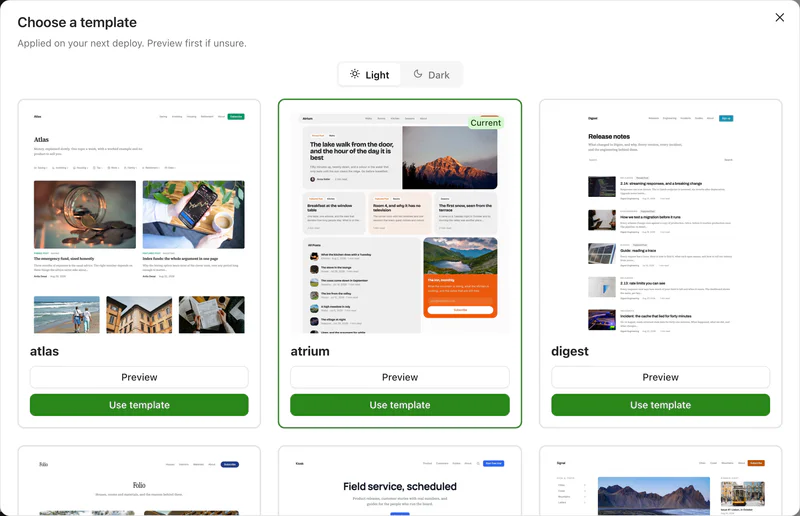
Every template comes in light and dark versions, and uses your own colours and fonts.
Change your template
- Open your blog's dashboard.
- Go to Settings > Design.
- Click Change template.
- Click Preview to see a template with sample content, or Use template to choose it.
- Click Deploy. The new template is applied on your next deploy.
You can also change it in the Pick your template step of the setup guide.
Older templates
Blogs created before the current templates keep their template. It stays selected in your settings, but older templates are no longer offered to new blogs.
Build your own
To control the design completely, you can build and upload your own template. See Custom templates.