
Migrate From Webflow: Move the Blog Out, Keep the Marketing Site

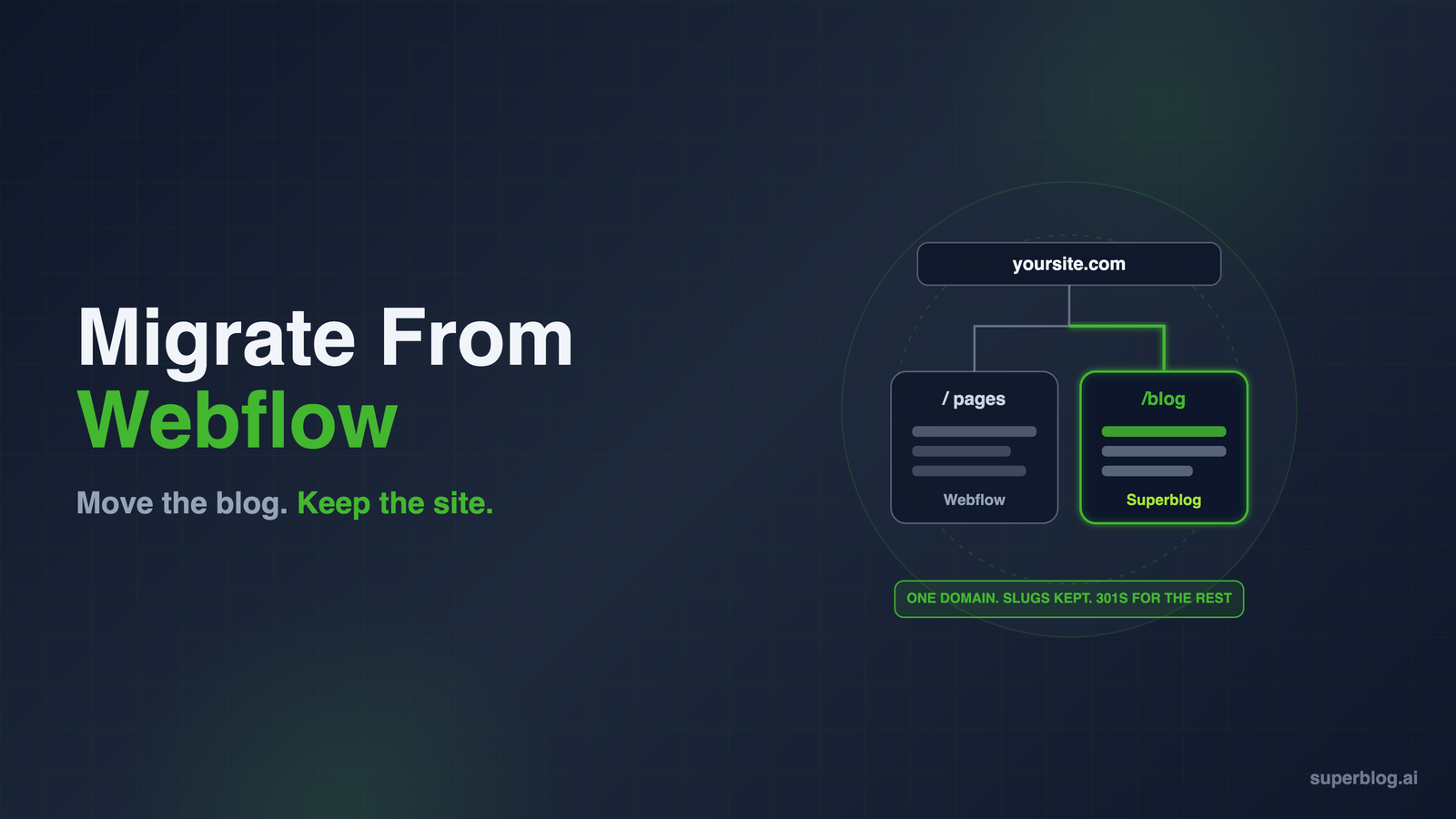
To migrate from Webflow without rebuilding your site, export the blog collection, import the posts into a blog platform, serve them at yoursite.com/blog, and 301 any post URLs that moved.
Most teams that migrate from Webflow do not want to leave Webflow. They want the blog out of it. The homepage, pricing page and product pages are where your designers earn their keep, and Webflow is good at those.
The blog is a different job. It is a growing archive of posts that writers publish every week, and it needs schema, translations and a fast editor. It keeps bumping into a tool built for designing pages.
This guide covers that split migration. The Webflow site stays exactly where it is, and only the blog moves. Every Webflow behavior below was checked against Webflow's help center and developer docs in November 2026.
What changes and what stays when only the blog moves
Picture the end state before you export anything:
The reasons teams give for making this move are usually specific. The Webflow CMS is a structured database with a visual template on top, and a blog that publishes often feels the friction first.
We covered the plan-level caps in Webflow CMS limits for a blog and the per-locale cost of translating posts in Webflow localization pricing. If you are still deciding whether a move is warranted at all, read those first. This post assumes you have decided.
Getting your posts out of Webflow
Webflow gives you two ways to pull CMS content out. A third route, code export, looks like it should work and does not.
Route 1: CSV export from the CMS panel
Open the CMS panel, click the blog collection, and click Export. Webflow's help center says this exports the whole collection, archived items included, and that you can filter or select items first if you only want some of them.
The file is useful, but know what is in it. Webflow's documentation is explicit about the format: "Rich text fields export as HTML. Images and files export as Webflow-hosted URLs." Reference fields, such as a category or author linked from another collection, come out as plain text, and multi-reference fields come out as a comma separated list.
Two details catch people:
- Images stay on Webflow. The CSV holds links, not files. Webflow warns that "If you delete that site, those assets and links break, including images in rich text fields." Whatever imports the CSV has to copy those images somewhere else before you shut anything down.
- One locale per file. Webflow states that a collection export "only includes items from the current locale view." A localized blog needs one export per locale.
Route 2: The Webflow Data API
The API is the cleaner source because it returns every item with its fields intact, plus metadata the CSV flattens. The list endpoint, GET /v2/collections/{collection_id}/items, needs the CMS:read scope and returns at most 100 items per request, so larger collections are paged with an offset.
To get a token, a site administrator opens the site's settings, goes to Apps & integrations, scrolls to API access, and clicks Generate API token. Webflow allows up to 5 tokens per site. Give the token read-only CMS access, since a migration never needs to write to Webflow, and revoke it once the move is done.
You do not need to write code to use this route. Superblog's Webflow import (below) calls this API for you. You need three things: the token, the collection ID and the name of the post body field.
The route that does not work: code export
Webflow's Code export downloads HTML, CSS, JavaScript and images, and it is only on paid Workspace plans. It does not include your posts. Webflow's help center lists CMS content among the things left out of exported code, and says Collection pages will not show any content bound to Collection fields. If someone on your team suggests "just export the site", this is why it will not help with the blog.
How to migrate from Webflow: three places the posts can land
Once you know how the content comes out, there are three realistic destinations. They differ in how much work sits between the export and a live, ranking blog.
1. Superblog's Webflow import (API pull, no file handling)
Superblog is a managed blog platform: the editor, the hosting, the blog design and the SEO output in one product, served at yoursite.com/blog next to your Webflow pages. Its Webflow importer reads straight from the Data API, so there is no CSV to clean and no script to maintain.
The steps:
- Create a Superblog site. The 7-day trial needs no credit card.
- In Webflow, generate a site API token with read-only CMS access.
- In Webflow, open the blog collection's settings and copy its Collection ID.
- Note the name of the field that holds the post body. If the field is called Post Body, enter it as typed; the importer converts it to the slug
post-body. - In the Superblog dashboard, open Data, choose Import from Webflow, paste the token, collection ID and body field name, and start the import.
The import runs in the background, and the dashboard says to expect about five minutes. You get an email when it finishes. Superblog's own walkthrough is in the Data section of the docs.
Here is what the importer does with each part of a Webflow post. We read the import code to write this table, because a migration guide that overpromises costs you a weekend of cleanup.
A few rows deserve a sentence each:
- Dates. If you edited and republished old posts in Webflow, their last-published date is recent, and that is the date the import uses. If your collection has its own custom date field for display, the importer does not read it. You can change any post's publish date from the post editor, and the REST API on Super can redate posts in bulk.
- Categories. In most Webflow blogs the category is a reference to a separate Categories collection, and Webflow's API represents a reference field as an item ID string, not a name. Expect to rename or reassign categories after import.
- Featured images. The importer finds the cover image field by name. A field whose slug contains "thumbnail" is picked up; check covers on a handful of posts, and set any that are missing.
- Archived items. The importer does not filter on Webflow's archived flag, so archived posts that are not drafts arrive as published. Delete them afterwards, or remove them from the collection before you import.
- Images on a trial. Images are copied only during an import that runs on an active paid plan. A trial import keeps every image loading from Webflow, and upgrading later does not move them: you delete the imported posts and import again, and edits made in between are lost. The dashboard explains this before a trial import starts. Use the trial to check how posts come across, then run the import you keep once the plan is active.
- Size. The import dialog states a limit of 300 posts per import. A second run skips any slug the site already holds, so it adds missing posts without duplicates, but it does not revisit images on posts already imported.
- Authors. Every imported post is credited to the person who ran the import. Reassign bylines after; a post can carry more than one author.
What you get on the other side, without configuring it: structured data generated per post (Article, WebPage, Organization and ImageObject, plus FAQ markup wherever a post has an FAQ block); XML sitemaps that rebuild on every deploy; an IndexNow ping when a post goes live; and an llms.txt index that points AI assistants such as ChatGPT and Claude to a markdown version of every post. Every post is compiled to static HTML ahead of time and delivered from edge locations worldwide, which is how it holds a 90+ Lighthouse score without tuning. Multilingual SEO with hreflang is on Super and above, with no charge per language.
Pro costs $49/month and covers a 1,000-post archive with five seats, scheduling and collaborative review. Super, at $99/month, brings ten seats, the REST API and multilingual SEO. Superblog offers a 30-day money-back guarantee. The trade-off is scope. Superblog runs the blog, not the rest of your site, which is exactly why Webflow stays.
2. A CSV import into another CMS
Any CMS with a CSV importer can take Webflow's export. You map columns to fields, decide how to map reference fields, which export as plain text, and handle images yourself, because the CSV only carries Webflow URLs. Then you still need that CMS served at /blog on your domain, a blog design that matches your site, and the SEO output configured. This route makes sense when the destination is a platform your team already runs for other reasons.
3. A script against the Data API into a headless CMS
Developers sometimes pull the collection through the API and write it into a headless CMS. You keep full control of the content model. You also take on the whole frontend: templates, rendering, sitemaps, structured data, image handling and hosting. For a marketing team trying to spend less engineering time on the blog, this moves the problem rather than removing it.
Where the posts can land, side by side
Serving the new blog at yoursite.com/blog
The routing is the part that lets Webflow keep the rest of the site. A trial site cannot connect yoursite.com/blog. The connection opens once a paid plan is active, so start the plan before this step.
A rule at the edge sends /blog and everything under it to the blog platform, and every other path continues to Webflow. Readers and crawlers see one domain.
We wrote the full setup, including the Cloudflare configuration Webflow documents and the caveats for Ecommerce and Memberships sites, in how to add a blog to Webflow. Follow that guide for the routing, then come back here for redirects. If you want the short version of how Superblog fits a Webflow site, the blog for Webflow page has it.
Redirect the old post URLs before you switch
Whether you need redirects depends on where Webflow served your posts.
Case A: posts already lived at /blog/slug. If your Webflow collection's URL path was blog, the new posts land at the same addresses because the importer keeps slugs. Once the routing rule is live, requests for /blog/... reach the new platform and never reach Webflow. No redirect is needed for the posts themselves.
Case B: posts lived somewhere else, such as /post/slug. If the collection's URL path was anything other than blog, the old URLs carry your rankings and backlinks, so send them to the new paths with a 301. Do this in Webflow, because those paths still route to Webflow:
- Go to Site settings > Publishing > 301 redirects.
- Add one wildcard rule. Old path:
/post/(.*). Redirect to path:/blog/%1. Webflow documents this capture-group pattern for moving a folder, and one rule covers every post. If the old folder name has a hyphen, escape it with%in the old path, as Webflow's redirect docs require:/blog%-posts/(.*)redirects to/blog/%1. The redirect-to path needs no escaping. - Archive, unpublish or delete the old collection items, or save them as drafts. Webflow's help center says you must do one of these before a redirect can replace a Collection item page.
- Publish the Webflow site and test three or four old URLs in a private window.
Three details from Webflow's documentation, as of November 2026:
- 301 redirects need a paid Site plan or a paid Workspace plan.
- Redirect rules are relative to the root domain and do not apply to localized slugs. If you had
/es/post/...URLs, each locale needs its own rule. - Importing redirects by CSV overwrites every existing redirect on the site. Export your current list first and append to it.
For slug changes after the move, Superblog has its own 301 redirect manager inside the blog's settings, so later edits do not need a trip back to Webflow.
The first two weeks after the switch: an SEO checklist
Run through this the day the routing goes live, then again a week later.
- Open ten old URLs, including your highest-traffic posts from Search Console. Each should load the new post or 301 to it in a single hop, with no chain through a second redirect.
- Fix dates in bulk. Compare a handful of post dates against the live Webflow versions and redate any that picked up a republish date.
- Write meta titles and descriptions for your top posts. The importer does not carry SEO titles or descriptions, whichever fields your Webflow template bound them to.
- Clean up categories and authors. Rename any category that arrived as an ID, reassign bylines, and add tags.
- Search post bodies for internal links that point at the old
/post/paths. The redirect covers them, but direct links are cleaner for crawlers and readers. - Check where images load from. Open a few imported posts and confirm image URLs point at Superblog's CDN, not Webflow. If they still point at Webflow, the import ran before the plan was active, so delete those posts and import again before removing anything from Webflow.
- Submit the new blog sitemap in Google Search Console and check that Webflow's sitemap no longer lists the old post URLs.
- Check one post's source for a self-referencing canonical, the JSON-LD block and the correct domain in Open Graph tags.
- Watch Search Console coverage for two weeks. A dip in impressions for a few days is normal; a growing count of 404s is not, and points to a missing redirect.
For how search engines treat a Webflow blog on its own domain path versus a subdomain, see Webflow blog SEO.
Keep the blog in Webflow if…
A split migration is not right for every team. Stay put when:
- Posts are really designed landing pages. If each article has custom layouts, interactions and components a designer builds by hand, a blog editor will feel like a step down.
- The blog is small and quiet. A dozen posts a year inside Webflow's plan limits does not justify a second tool, a routing rule and a migration weekend.
- Your content model leans on references. Case studies linked to authors, products and industries across several collections are what the Webflow CMS is built for. A blog platform models posts, categories, tags and authors, not arbitrary relationships.
- Nobody can touch DNS or the edge. Serving /blog from a second platform needs one routing change at your DNS or CDN provider. If that is off limits, a subdomain is the fallback, and it carries the SEO trade-off we describe in the add-a-blog guide.
If none of those describe you, compare the two directly on the Webflow blog alternative page.
FAQ
Can I export my blog from Webflow?
Yes. Export the collection as CSV from the CMS panel, or read it through the Webflow Data API with a site token. Code export does not include CMS content.
Do I have to leave Webflow to move the blog?
No. The marketing site stays on Webflow, and only /blog is routed to the new platform.
Will my post URLs change?
The importer keeps each slug. If the old path was /blog/, nothing changes. If it was /post/ or similar, add one wildcard 301 in Webflow.
How long does a Webflow blog migration take?
Superblog's dashboard estimates about five minutes for the import itself. Plan an afternoon for redirects and checks.
What does not come across from Webflow?
Tags, authors, and SEO titles and descriptions. Categories may arrive as IDs and need renaming.
Move the blog, keep the site
The site your designers built stays in Webflow. The blog moves to a platform made for publishing, at the same domain, with slugs intact and SEO output generated on every deploy. Start a Superblog trial and run the Webflow import to see your archive on the new platform before you touch DNS. Run the import you keep, and connect /blog, once a paid plan is active.
Your blog, without the maintenance
Fast pages, automatic SEO, no plugins to patch. Runs on yoursite.com/blog.
Sai Krishna is the Founder and CEO of Superblog. Having built multiple products that scaled to tens of millions of users with only SEO and ASO, Sai Krishna is now building a blogging platform to help others grow organically.
superblog
Superblog is a blazing fast blogging platform for beautiful reading and writing experiences. Superblog takes care of SEO audits and site optimizations automatically.